
Users can share their saved searches with other users belonging to the same organization by taking the following steps:
- Log into your Jatheon Cloud account
- Head over to the Saved Searches section
- Under the Emails/Social Media Items tab, you will find all of your saved searches related to Emails/Social media items
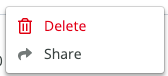
- Click the More menu and select the Share option
- A pop-up will appear showing a dropdown with the list of all the users that you can share the Saved Search with
- You can select one or more users and search for a specific user by entering their email address
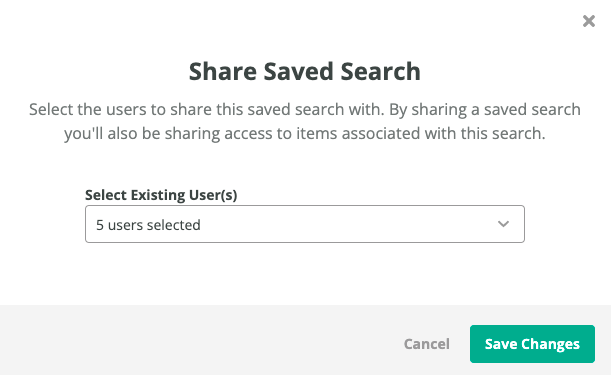
Once you select all the users you want to share the Saved Search with, click the confirmation button and you will be presented with the notification confirming the successful action.

The Shared With column shows the number of users a saved search was shared with. If you click on it (this option will be active in case there is at least one user), a pop-up will open and you'll be able to remove or add more users to share the saved search with.
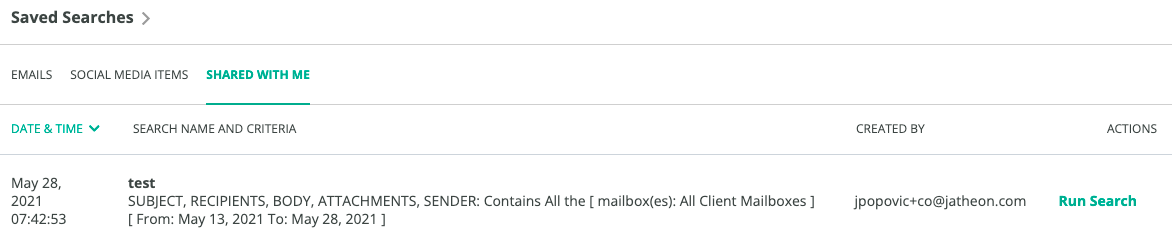
In case you'd like to see the list of all the Saved Searches that have been shared with you, select the Shared With Me tab. You can click the Run Search link and you will be redirected to the Search Results section, where all the emails according to the Saved Search will be available. This tab will also present the:
- Date/Time when the search was saved,
- Search Name and Criteria and
- Created By information.
Please note that once you are presented with the emails that according to the search term of the Saved Search, you will not be able to perform some actions, e.g. Applying/Removing a Tag, Adding a Note, Adding Email to a Case, Reply, Reply to All, Restore and Redact.
Comments
0 comments
Please sign in to leave a comment.