
Step 1: Admin Activation
Log into the Jatheon Cloud platform as an Admin, then navigate to Company Settings > Connectors > iMessage.
Under the Unarchiving tab, select the user and move them to the Archiving tab.
This will trigger an automated email to the user containing a unique onboarding link.
User Action:
User receives an automated email. Click the link in the email to be placed in the onboarding queue.
Step 2: Submitting Apple Credentials
Type the Apple ID and Password used on your iPhone.
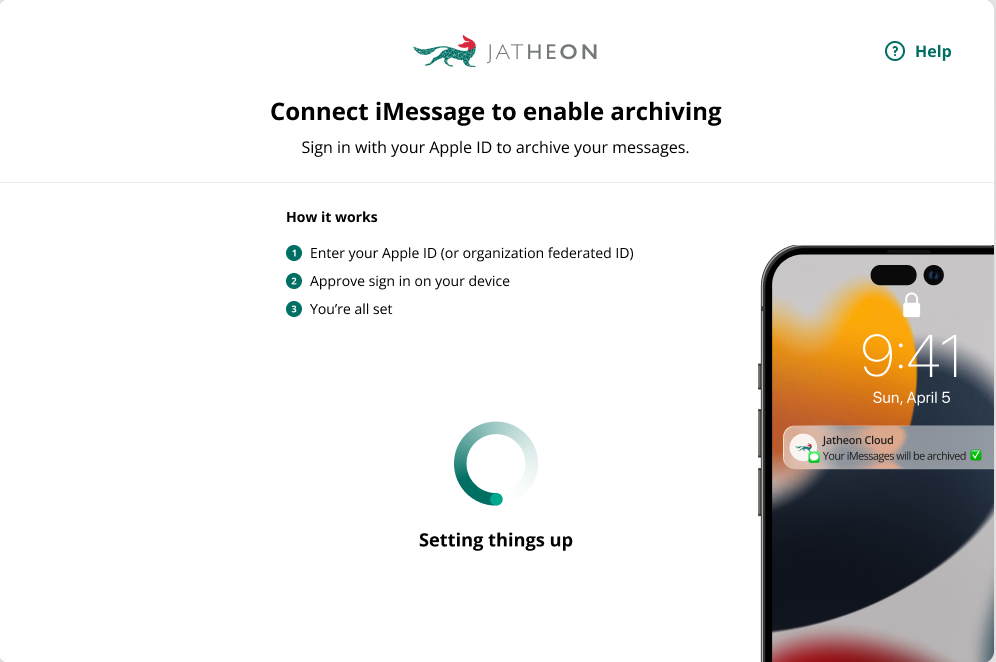
A Loading Spinner will appear while the backend connects to Apple. Wait and do not close the browser.
Step 3: Security Verification (The 2FA Step)
Standard Apple Users: Look at your iPhone. Click "Allow" on the Apple sign-in prompt, then read the 6-digit code and enter it in the screen prompt:
Microsoft Intune Users: If your device is managed by Intune, the Apple prompt may not appear. Open the Microsoft Authenticator App on your phone to find your 6-digit code.
Type that 6-digit code into the Apple verification code box on the landing page.
Click Next.
Step 4: Enabling iPhone Text Message Forwarding
On your physical iPhone, open Settings and Search for "Text Message Forwarding".
Find the entry for "Jatheon Mac" and toggle the switch to ON.
IMPORTANT for Intune Users: If your phone asks for a code to enable this, Contact Jatheon Support. They will read you a code displayed on the Mac instance to enter into your phone.
Step 5: Completion
As soon as these steps are finished, the system will automatically update your status to "Archiving." No further action is required from your side.
Related articles
- How to Connect iMessage Archiving via SnippetSentry to Jatheon Cloud
- How to Add a Whitelist/Blacklist for WhatsApp/iMessage
- How to Manage Enterprise Phone Numbers section
Learn more about iMessage archiving with Jatheon Cloud.
Comments
0 comments
Please sign in to leave a comment.